KmboxA
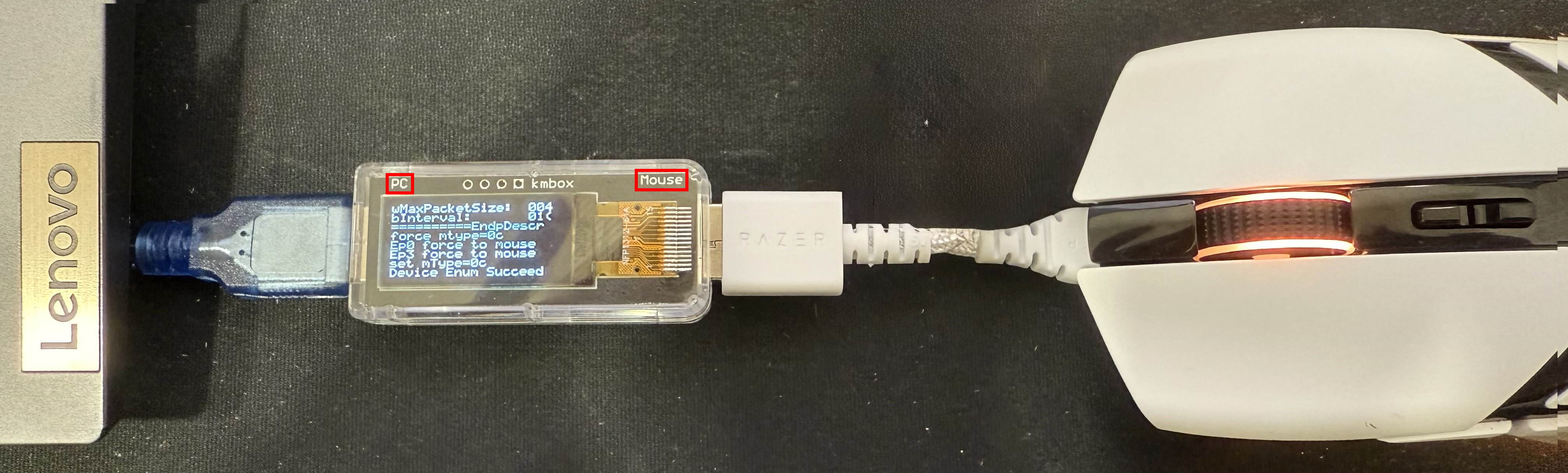
Connect the box to the PC
#[PC]-[KmboxA]-The mouse wireless receiver is less compatible than a direct wired connection]
Installation
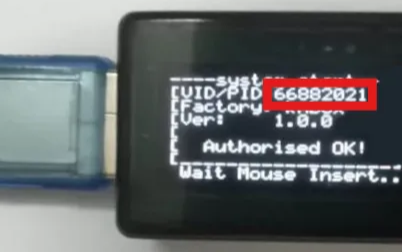
[1.If the [VID/PID] shown on KmboxA is 66882021, it may lead to a ban]("Please follow the guide below to modify [VID/PID]")
If the debugging software is detected, it may lead to a ban
If the debugging software is detected, it may lead to a ban
If the mouse moves normally and all buttons work after connecting, you can skip mouse adaptation
The following steps require another mouse connected directly to your PC so you can operate the whole process
#1.Download the debugging software
2.Check the [VID/PID] shown on KmboxA
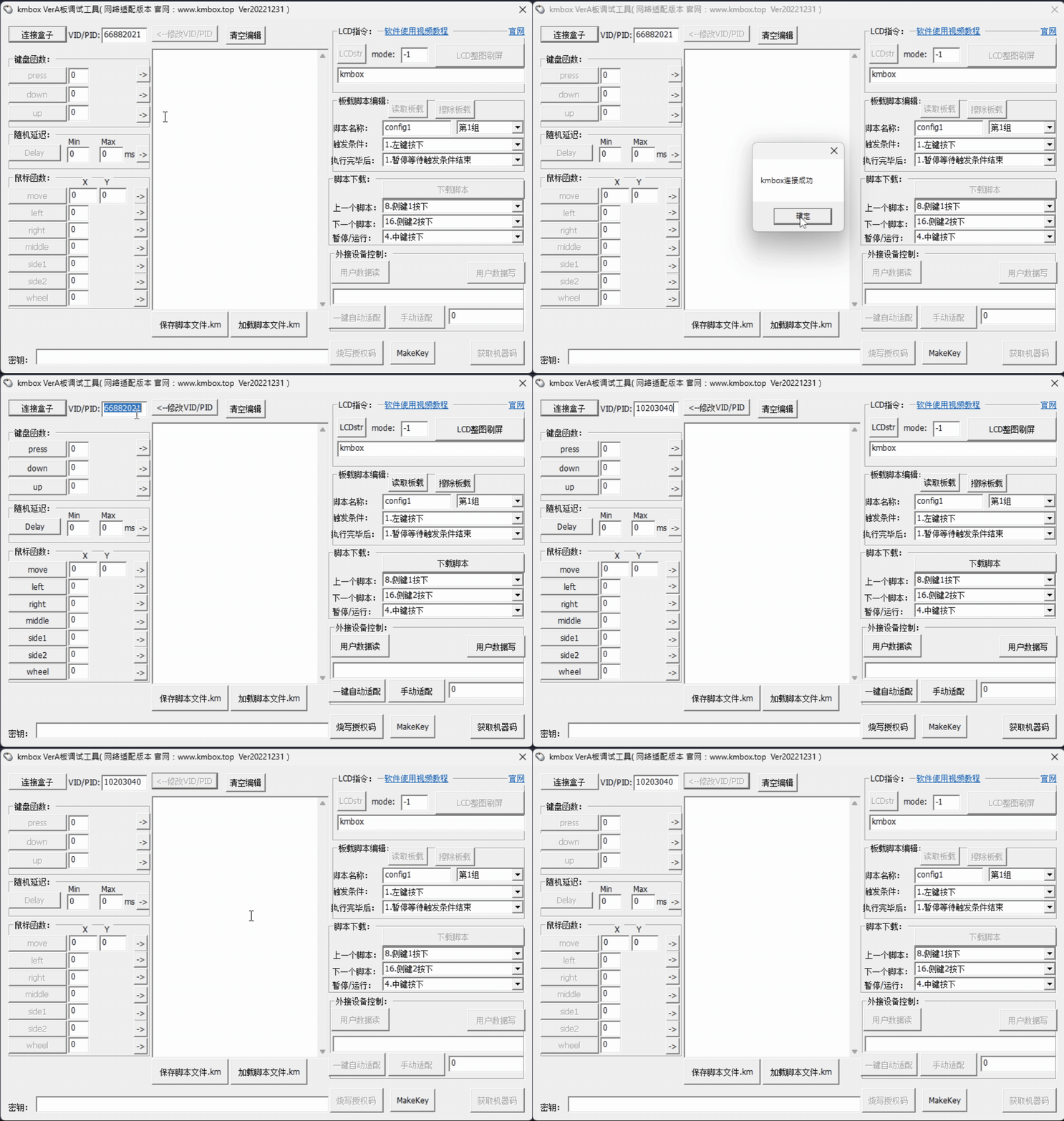
3.Start the debugging software and enter it into the VID/PID: field at the top left
4.Click the Connect box button
5.If your VID/PID is 66882021, change it to any other Example: [ 12345678 ]
6.Click the Modify VID/PID button
7.Click One click auto adapt at the bottom right
✅ The mouse should work normally at this point
⬇️ Download debugging software
- Connect the box & modify VID/PID
- One click auto adapt
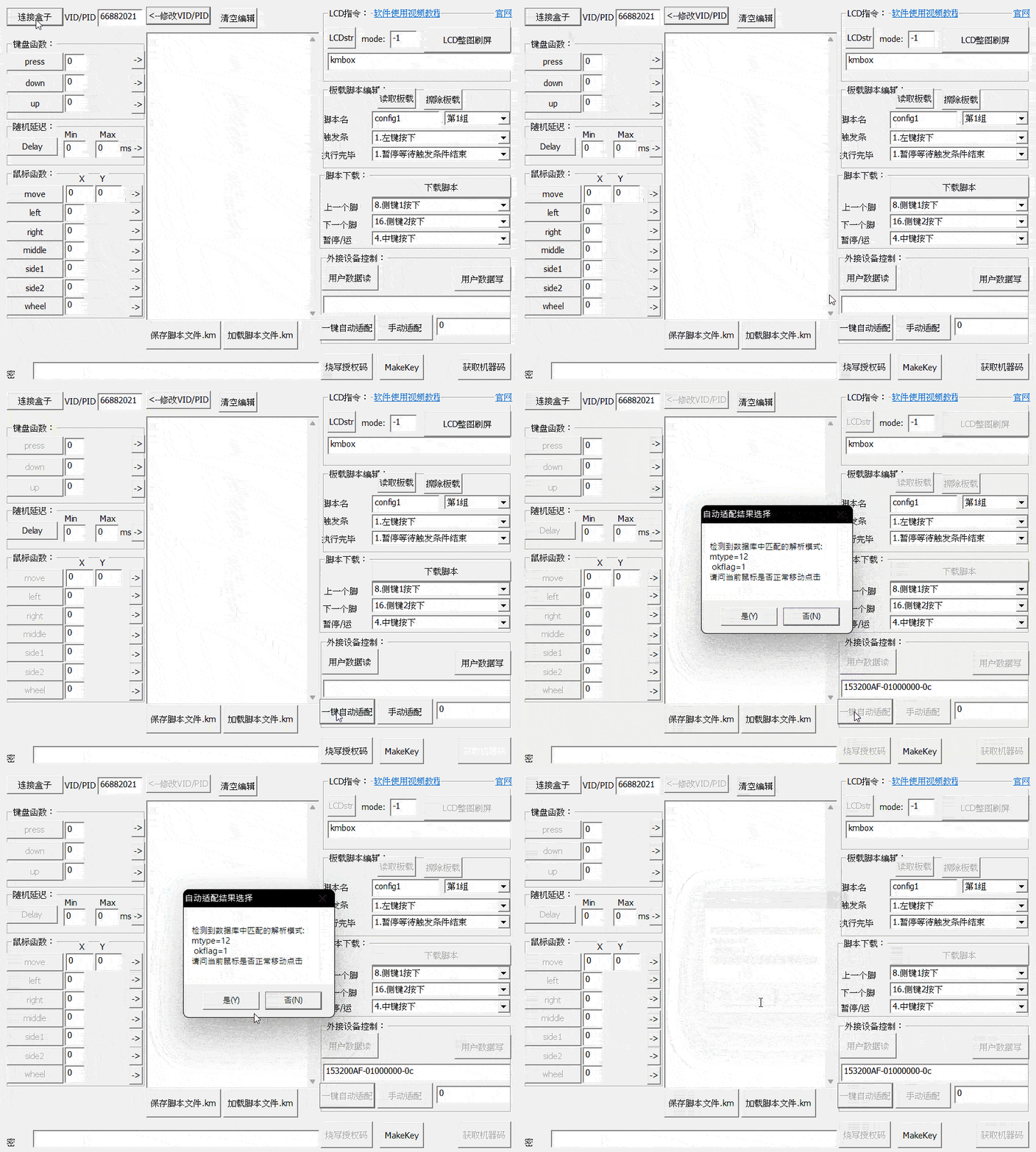
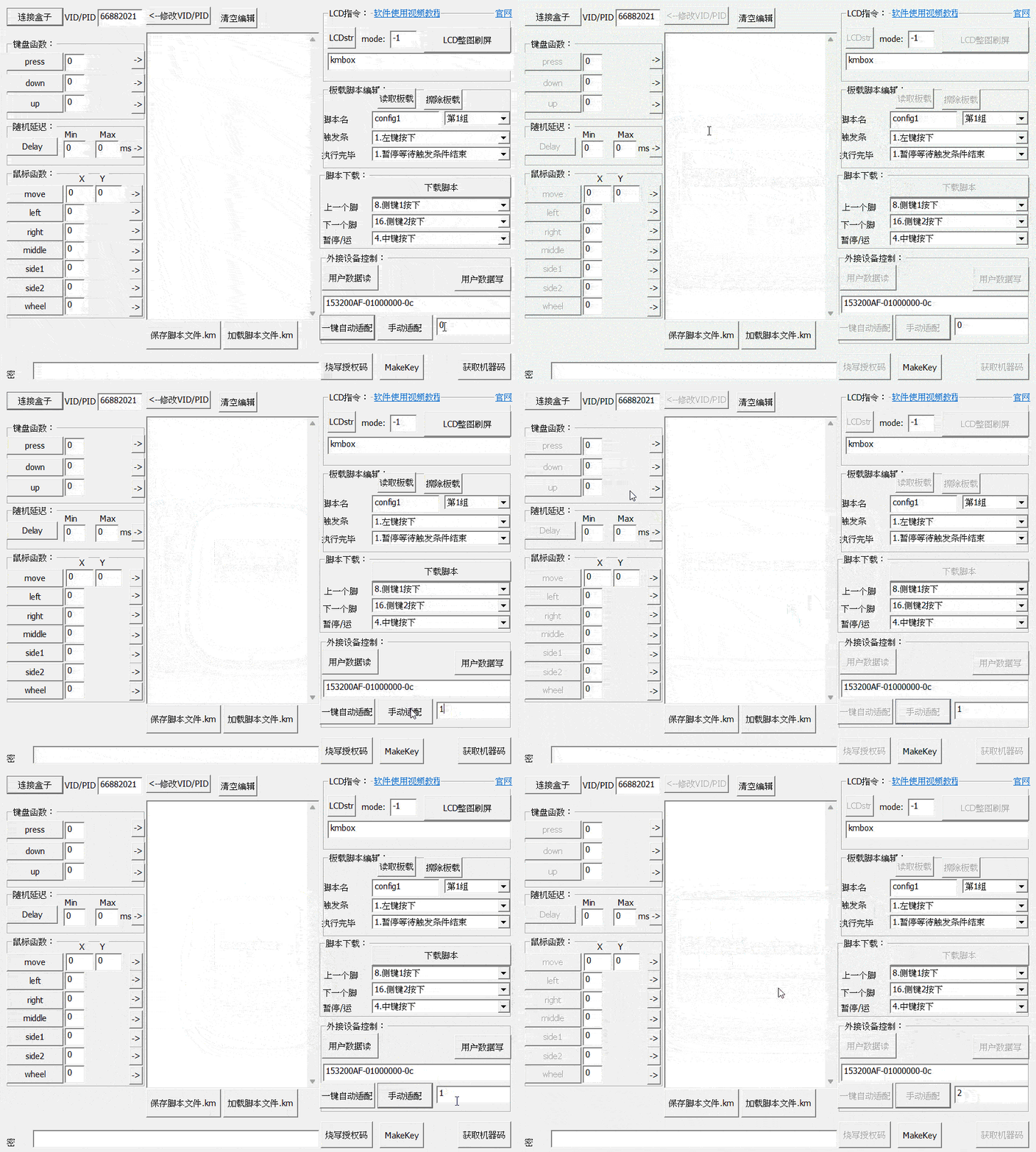
#If the mouse still cannot move normally after One click auto adapt
In Manual adapt, test from 0 to 24 one by one to find the value that works normally.
Connect the box to the tool
#1.Get the [VID/PID] shown on KmboxA
2.Open the tool and log in
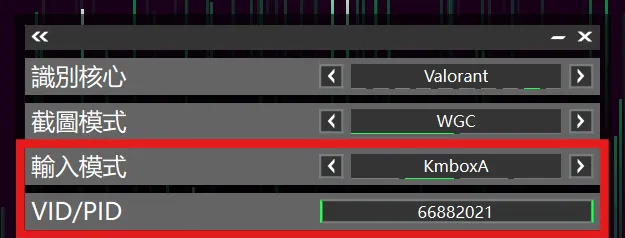
3.On the Core Selection page, set Input Mode to KmboxA
4.Enter VID/PID
5.Click the tool's Start button to begin the connection
- VID/PID shown on the box
- Tool settings