KmboxA
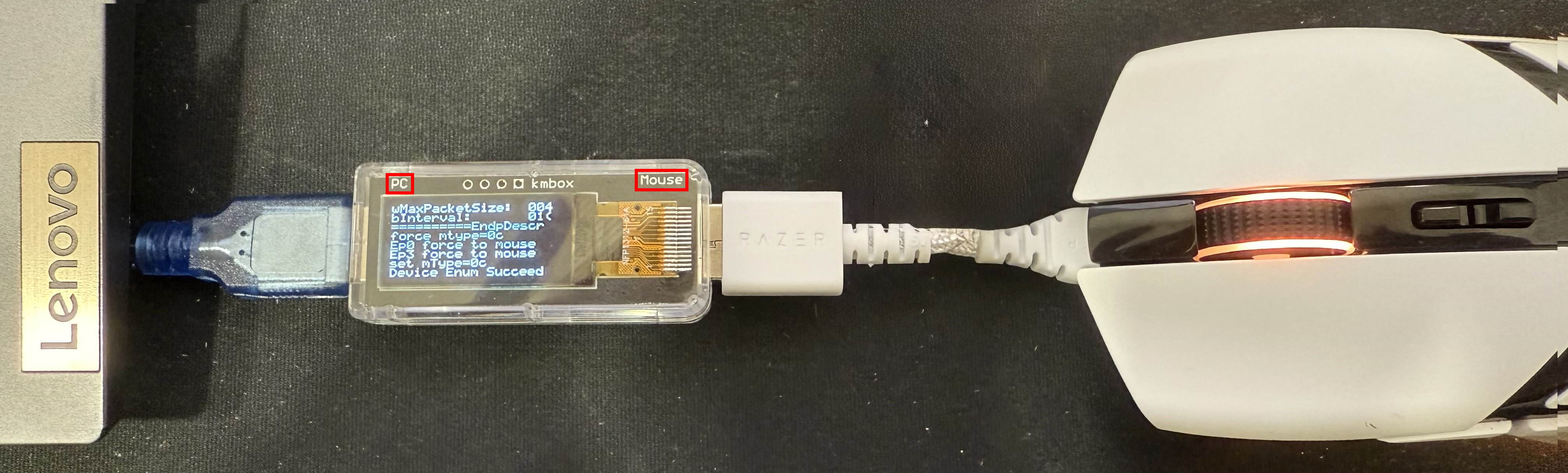
Connect the box to the PC
#[PC] - [KmboxA] - [Mouse or wireless receiver]
Installation
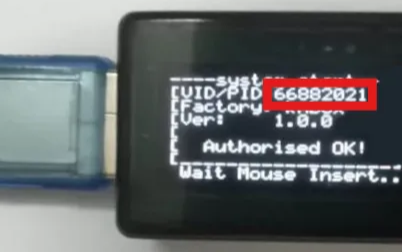
1.If the VID/PID shown on KmboxA is 66882021, it can lead to a ban. Please follow the steps below to change it.
2.Close any game or anti cheat system before downloading the tool to avoid detection risk.
2.Close any game or anti cheat system before downloading the tool to avoid detection risk.
If the mouse works normally after connecting, you can skip mouse adaptation
You will need another mouse connected directly to your PC to complete the steps
#1.Download the tool
2.Check the VID/PID shown on KmboxA
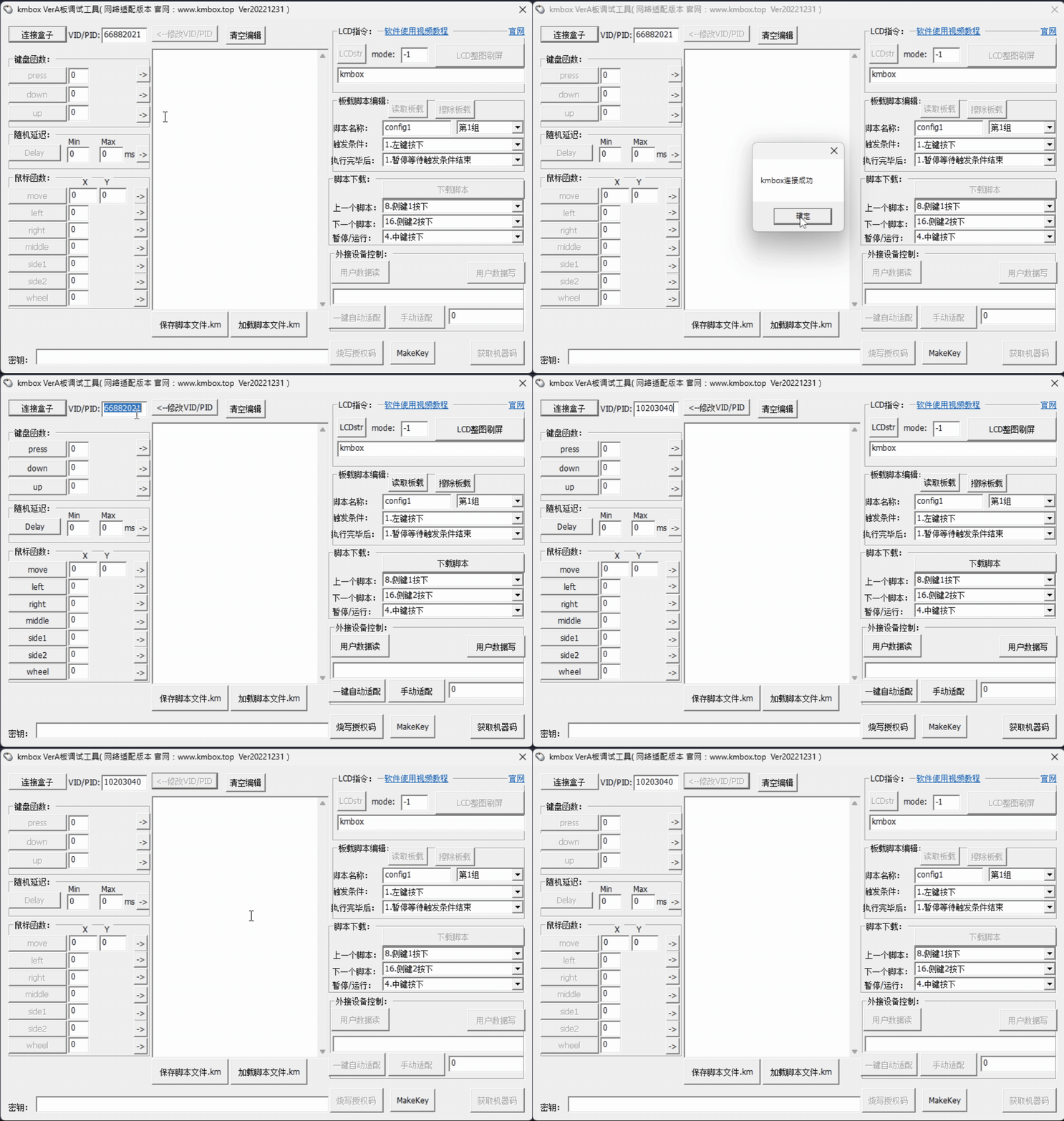
3.Launch the tool and enter it in the VID/PID: field at the top left
4.Click Connect box
5.If your VID/PID is 66882021, change it to any other 8 digit number (example: 12345678)
6.Click Modify VID/PID
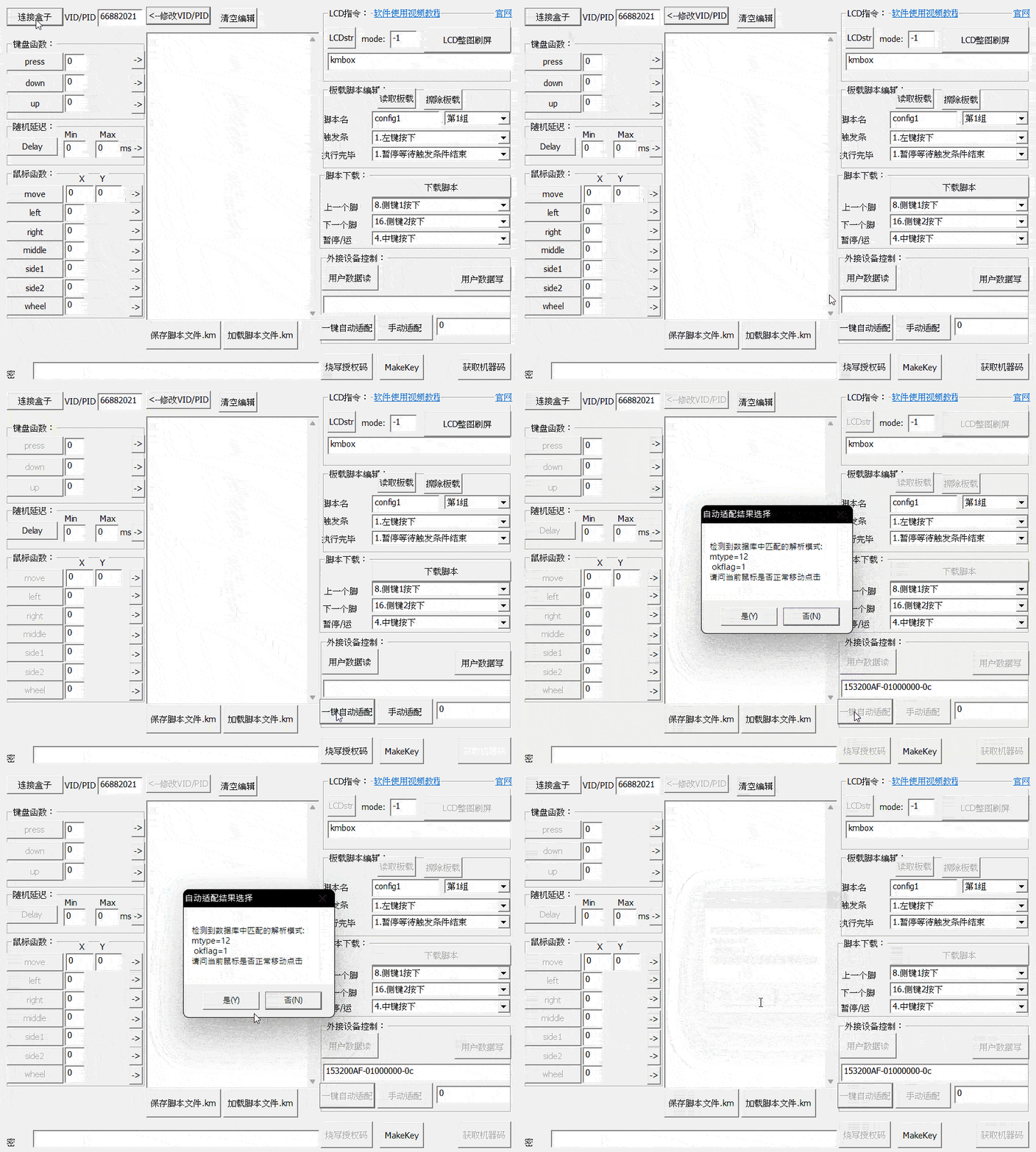
7.Click Auto adapt at the bottom right
✅ Your mouse should work normally now
⬇️ Download tool
- Connect box and modify VID/PID
- Auto adapt
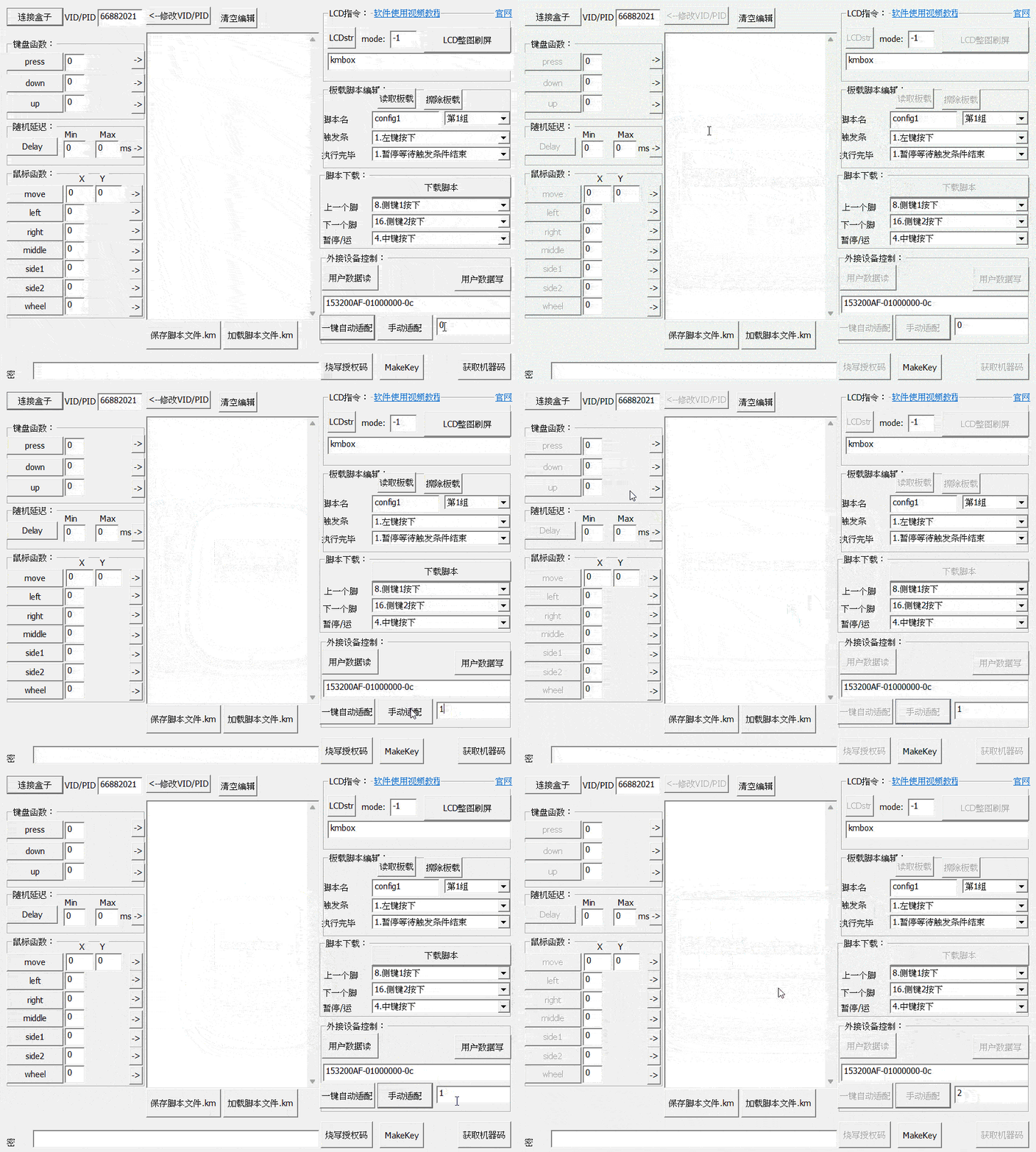
#If the mouse still does not move after Auto adapt
In Manual adapt, try values from 0 to 24 one by one to find the one that works.
Connect the box to AIG5
#1.Note the 8-digit VID/PID shown on the KmboxA
2.Open AIG5 and log in
3.On the Input mode page, set Input method to KmBoxA (marked "Manual setup")
4.Enter those 8 digits in the VID/PID field
5.Click Connect box
6.After a successful connection, AIG5 moves on to the next page automatically (Sensitivity Calibration or the console)
- The first 4 digits are the VID and the last 4 are the PID, with nothing in between, for example
12345678. - The grey
66882021in the field is only an example, not a default. Enter the number shown on your box. - KmboxA needs no COM port and no extra driver.
- After a successful connection, AIG5 remembers this VID/PID and reconnects automatically the next time it starts.
Notes
#FAQ
#"This VID/PID carries a ban risk" appears
You entered 66882021, a public example value. Connecting with it carries a higher ban risk, so AIG5 won't connect with it. Use the tool in Installation above to change the box's VID/PID to another 8-digit value, then enter the new VID/PID in AIG5.
#"Invalid VID/PID" appears
The VID/PID must be exactly 8 characters, using only the digits 0-9 and the letters A-F. Check for missing, extra or stray characters, then click Connect box again.
#"Auto-detection failed — please specify a serial port manually." appears after clicking Connect box
KmboxA doesn't use a serial port, so that line doesn't apply. The smaller line below it gives the real reason:
- 找不到符合 VID/PID 的 KmBoxA 裝置 (this line currently appears in Chinese; it means no KmboxA matching the VID/PID was found): the VID/PID you entered differs from the one on the box, or the box isn't connected. Check the number on the box's screen and make sure the box is plugged into the PC.
- Any other message: unplug and replug the box, then click Retry connection.
#Can KmboxA use Dual Machine Mode?
No. KmboxA doesn't report the physical mouse buttons back to AIG5, so the console doesn't show the Dual Machine Mode switch.