Makcu
Buy the box
🛒 BuyInstallation
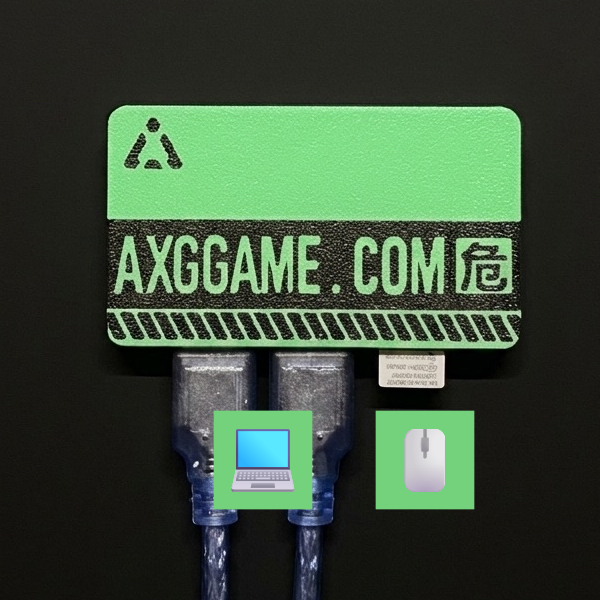
1.Connect the box to PC
#Use the left/middle ports with the included USB cable to connect to the PC
The right port connects to the mouse or wireless receiver
2.Driver installation (optional)
#You don't need to install a driver first; go straight to the next step.
If a driver is missing, AIG5 offers to install it when you connect
When AIG5 finds the box but can't confirm what it is, the Installing the dedicated driver might help dialog appears:
- Click Install and continue
- When Windows asks for permission, choose Yes
- Installation shows no progress bar; when it finishes, AIG5 rescans for the box and continues connecting
Occasionally Windows needs to restart appears. Restart the PC, return to the Input mode page and click Connect box again.
To install it yourself beforehand, download the driver (CH343SER), open it and click INSTALL.
⬇️ Download driver3.Connect the box to AIG5
#1.Open AIG5 and log in
2.On the Input mode page, set Input method to Makcu (marked "Recommended · Auto-detect"; it is selected by default)
3.Click Connect box
4.After a successful connection, AIG5 moves on to the next page automatically (Sensitivity Calibration or the console)
- No COM port is needed. AIG5 finds the box and verifies that it is a Makcu.
- After a successful connection, AIG5 reconnects to the same Makcu automatically the next time it starts.
Notes
#FAQ
#"No hardware box found" appears
AIG5 couldn't find any Makcu. Make sure the box's left/middle port is connected to the PC with a USB cable, click OK to close the dialog, then click Connect box again.
#"Multiple possible boxes found" appears
More than one device on the PC looks like a Makcu. Pick the one marked Recommended and click Use this device.
#"Serial port in use by another program" appears
The box was found, but its serial port is being used by another program (for example a serial terminal or the flashing website). Close that program and click Retry, or click Select manually to choose the serial port yourself.
#"Couldn't confirm this is a Makcu" appears
That serial port didn't answer Makcu's identity check. Unplug and replug the box, then click Retry. If the PC has several serial devices, click Choose another port to pick one manually.
#"Auto-detection failed — please specify a serial port manually." appears
- Open Move the mouse to the Windows Start button
Device Manager is in the right-click menu - Expand Ports (COM & LPT)
- Find CH343 (COM?); the number after COM is the serial port
- Back in AIG5, enter the serial port in the manual field (for example
3orCOM3) and click Confirm

To go back to automatic detection, click Auto-detect next to the field.
#Does Makcu require a secondary PC?
No. Makcu supports separating the gaming PC and the assist PC, but it is not required. When you use two PCs, turn on Dual Machine Mode on the AIG5 console's gear page.